Posts

Showing posts with the label photoshop

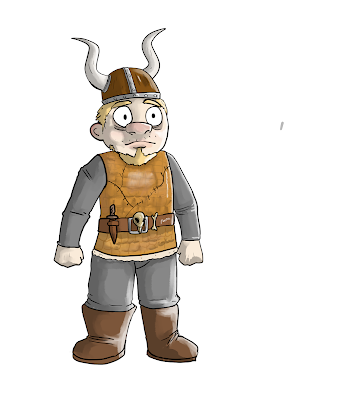
Gorm concept art, expressions and head orthographics

Image
 

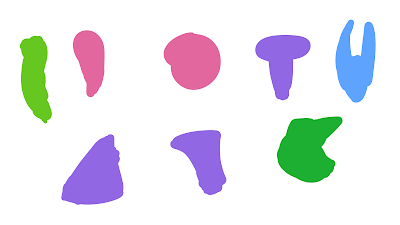
Megs art jam - Ink Blots

Image
 

Tails from Westminster - Character Bible

Character Design Bible - Toolkit 2 by ted stapleton on Scribd

Mouse Character Concepts 02

Image
The protagonist of the story. The uncle of the main character 

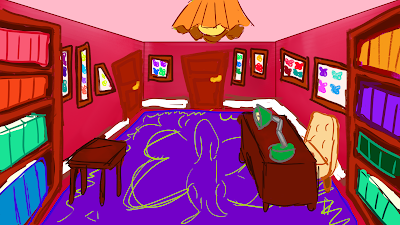
Flat Concept Art

Image

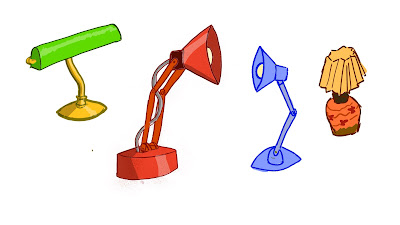
Lamp Concept Art

Image

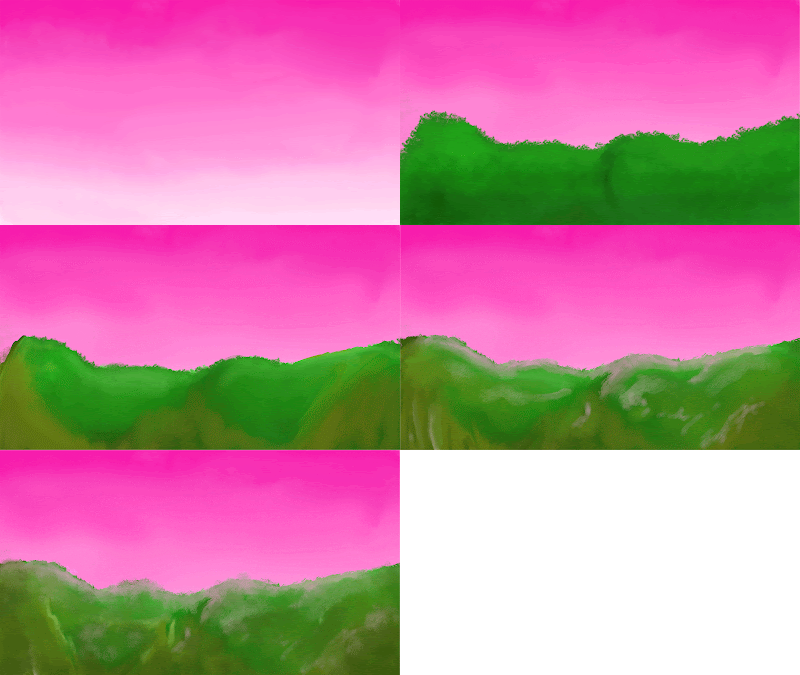
Digital Painting Practice 01

Image
Progress on some digital painting practice I did in Photoshop.  With line art Without line art

Crit Presentation for December 14th 2018

Crit Present by ted stapleton on Scribd

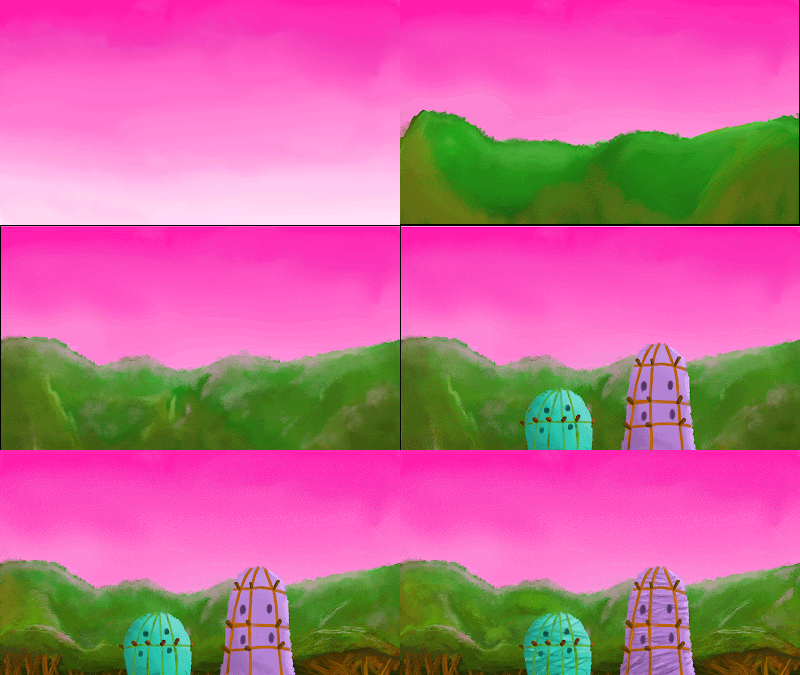
Updated GIF sequence of matte painting buildup

Image

Updated matte painting (updated)

Image
Updated matte painting with buildings to make my city appear my clustered and crowded - more like  an actually city than a distant village.

Matte Painting GIF

Image
GIF showing the development of my Matte Painting.

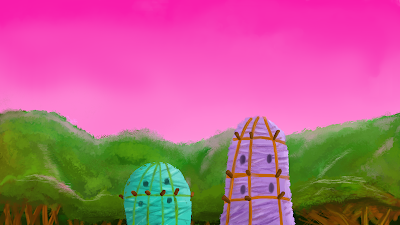
Matte Painting

Image
Painting showing a exotic pink sky with lush, vivid vegetation sprawling across tall hills.

Photoshop Session (19th November 2018) - Maya Textures

Image
Textures for this cube were made in Adobe Photoshop. Textures for this one were made in Autodesk Mudbox.

Bamboo door Thumbnails

Image

Maya Experimental Thumbnails

Image
The models were made in Maya and later coloured in Photoshop.

Photoshop Workshop - Thumbnail Buildings (5th November 2018)

Image

Photoshop Workshop (22nd October) - Thumbnail Lineart

Image
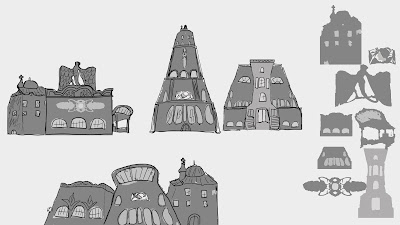
Extra Thumbnails with line-art.

Photoshop Workshop - Perspective (1st October)

Image
One Point, Two Point, and Three Point exercises done in Photoshop in class on the 1st of October.   One-point Two-point Three-point

Photoshop Workshop - Abstract Copies (24th September)

Image
Copies of screenshots from selected films made by having the layers linked with each other by holding down Alt while moving the layers. Used the polygonal lasso tool to copy the screenshots. For the last one of the statue, more detail was added using various brushes. 

Photoshop Workshop - Custom Brush and Shape (1st October)

Image
Top: The custom brush made in Photoshop using a picture of coral, resizing it to 300 by 300 pixels, making black and white and selecting Define Brush Preset.  Bottom: The Custom shape made by using an image of the cross-section of a tree, selecting Colour Range to pick which areas to be used and then select Define Custom Shape. Image used for Custom Brush Image used for Custom Shape